User guide
This is the guide to the Wordlight Bible app. The pictures are taken from the app, with sample data.
1. The start page on a phone
On a phone held upright, Wordlight opens with an overview start page. On tablets and landscape phones the layout is different, and this guide does not show it.
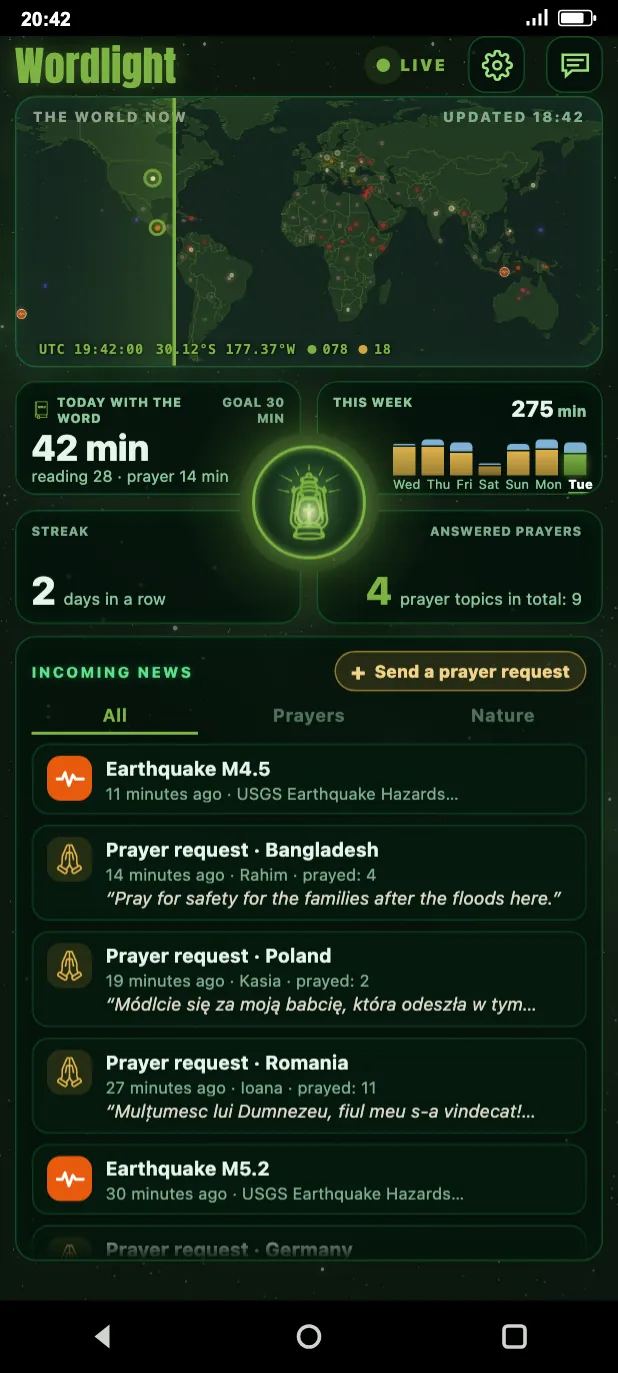
- At the top, the The world now map shows the latest events in the world and prayer requests as dots, and a vertical line sweeps across it. Tap it and the full map opens with the world-situation layer.
- Below it are four cards. Today with the Word shows today's reading and prayer time against your daily goal. This week shows the time of the days of the week as bars. Streak shows how many days in a row you have been reading. Answered prayers shows the number of your answered prayer topics out of all your prayer topics.
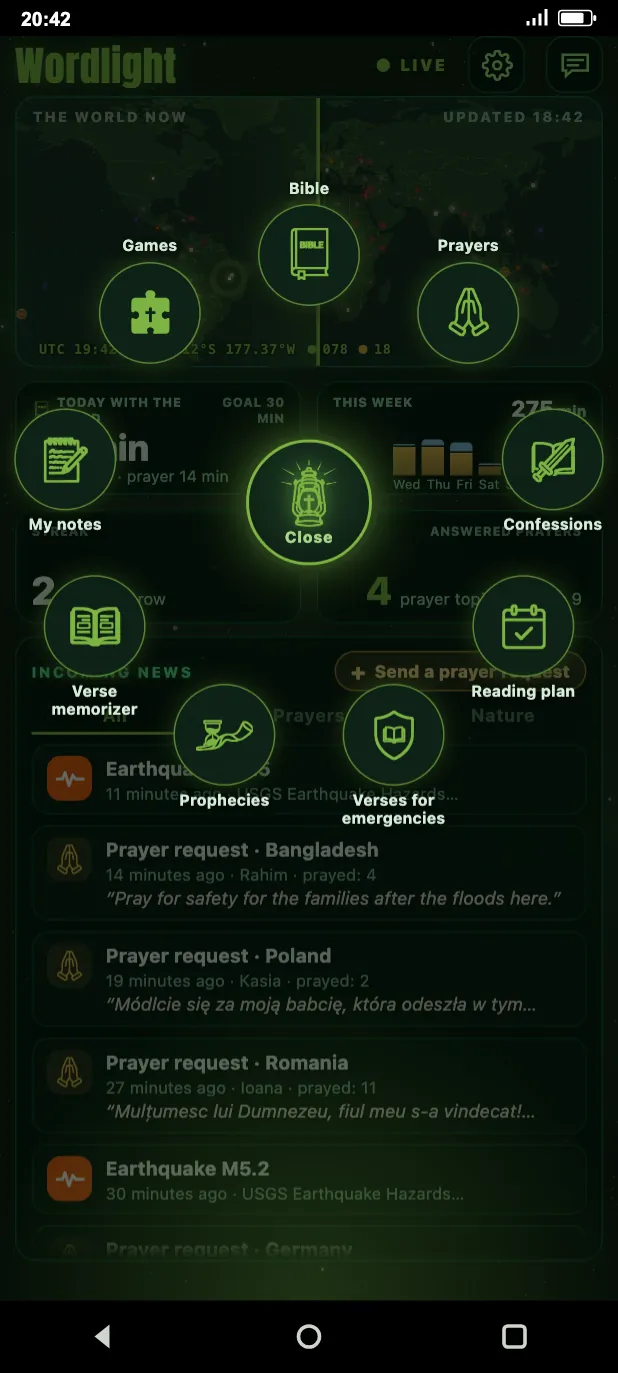
- In the middle of the four cards is the lantern. Tap it and the tiles of the nine modules open in a ring around it: Bible, Prayers, Confessions, Reading plan, Verses for emergencies, Prophecies, Verse memorizer, My notes and Games.
- You can turn the ring round with one finger, and after a quick flick it keeps turning for a moment. The ring stays at the angle you leave it: after closing and reopening, after leaving the page and after restarting the app. Tap a tile to open the module; close the ring with the Close button in its middle or by tapping the background.
- Further down, the Incoming news list shows the latest events in the world and prayer requests, newest first, up to 16 items. Above the list you choose a filter: All, Prayers or Nature. Nature means earthquakes, wildfires, floods, tropical cyclones, volcanic eruptions and droughts; war and similar events show only under All. The filter also applies to the map and is remembered on the device.
- Tap a news item and the event opens on the map; a prayer request opens in the prayer requests list, highlighted. The Send a prayer request button sits next to the news. The news refreshes with an internet connection.
- In the header, the gear opens the Settings page and the button next to it opens Feedback.
2. The reader: books, chapters, verses
The Bible tile opens the grid of books: the books of the Old and New Testament on coloured tiles. Tap a book for the grid of chapters, tap a chapter for the text.
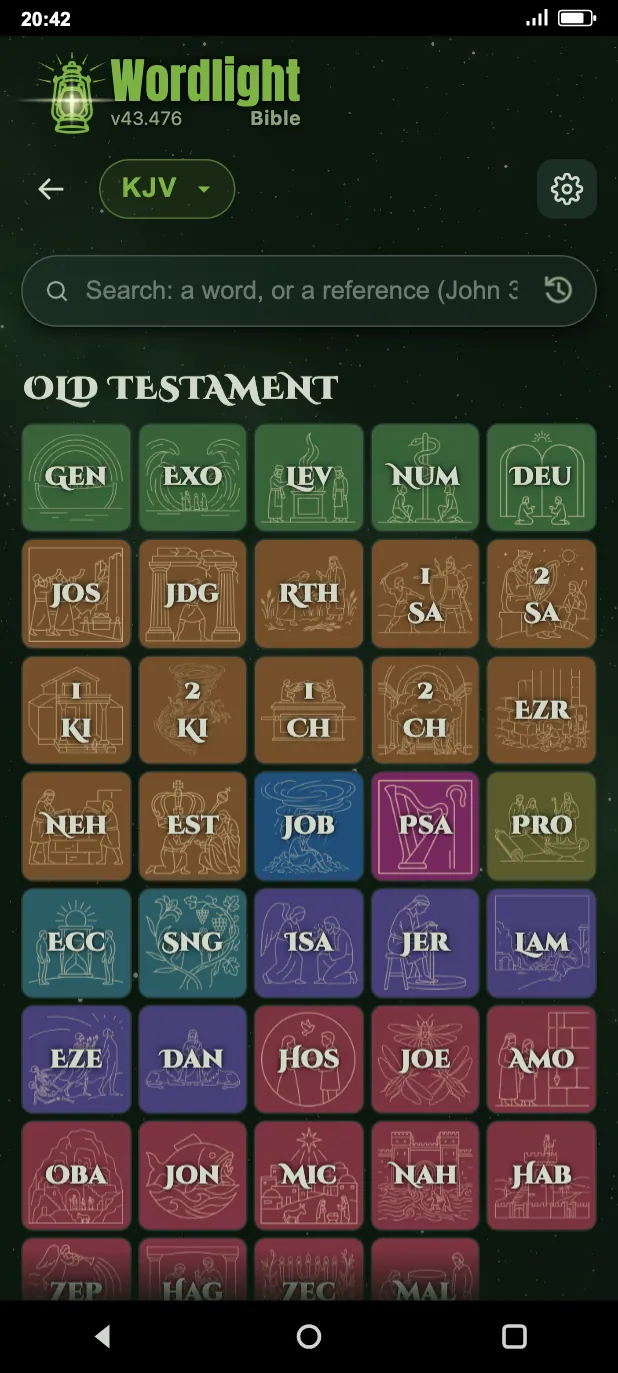
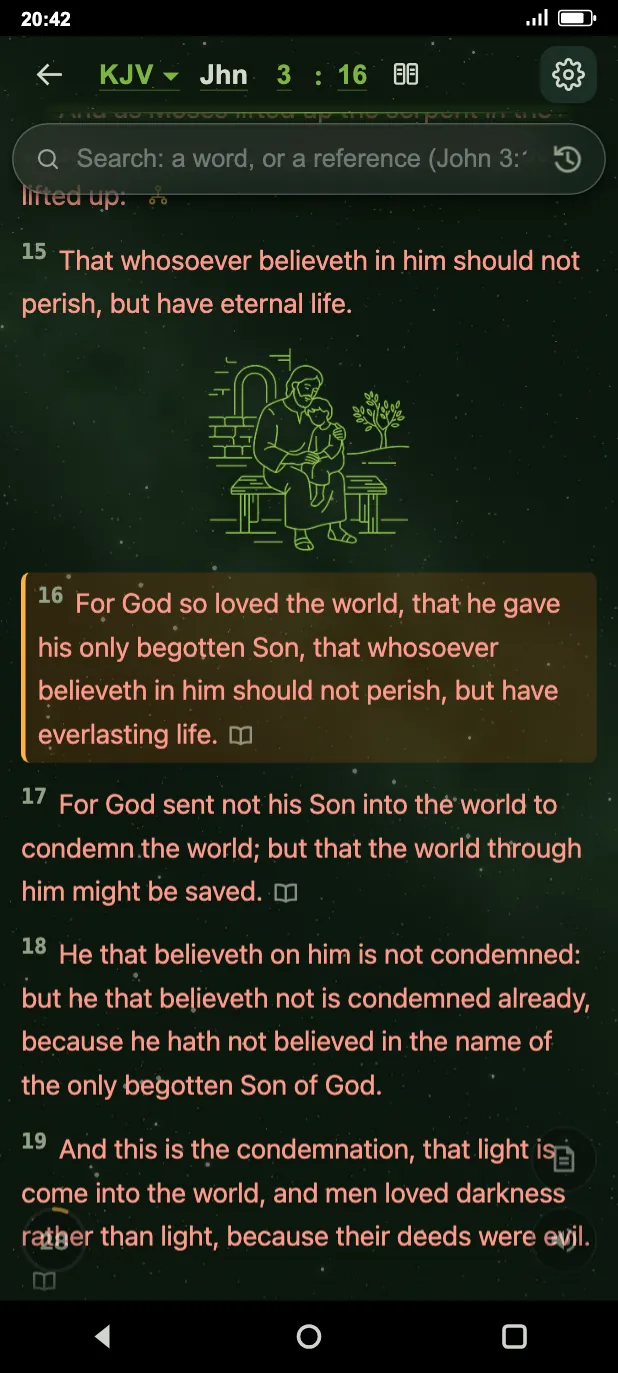
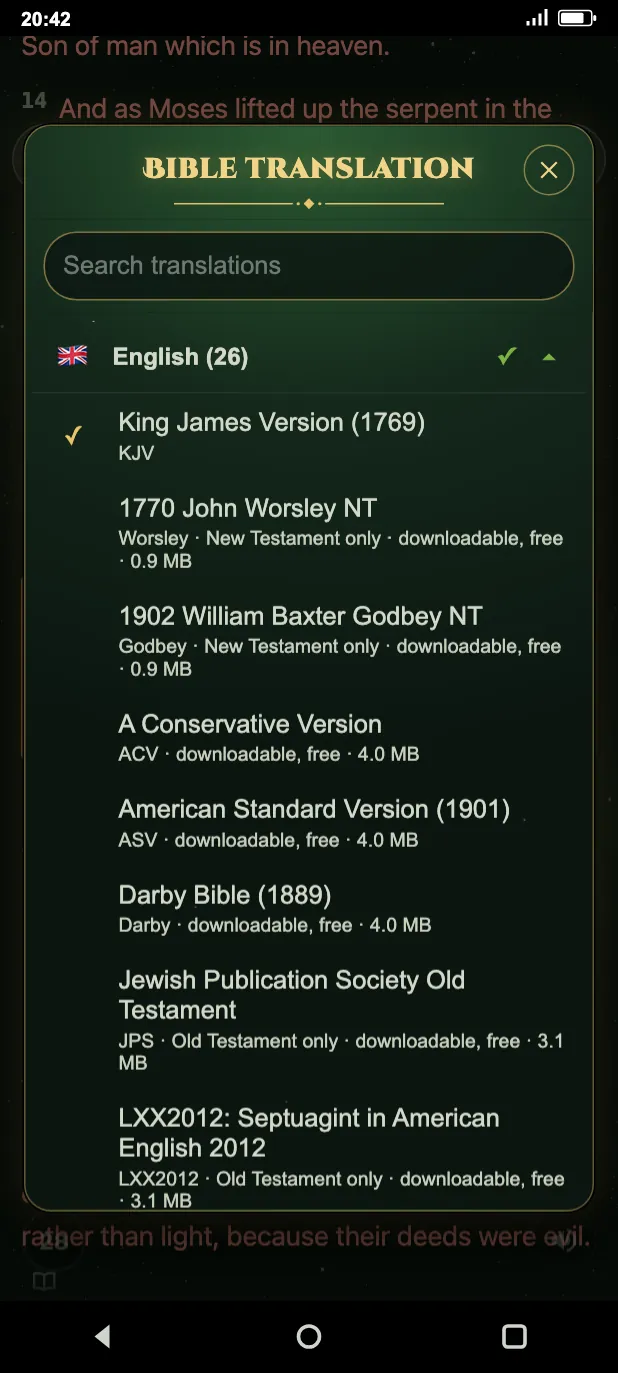
- In the header, the short name of the translation (for example KJV) shows which one you are reading. Tap it to open the Bible translation chooser, with translations grouped by language. Downloadable translations are free, and once downloaded they can be read without internet.
- Every interface language has its own Bible: Károli Gáspár (hu), King James Version 1769 (en), Lutherbibel 1912 (de), Reina Valera 1909 (es), UBG 2017 (pl), Biblia 1914 (ro), Synodal 1876 (ru), Kulish 1903-1905 (uk).
Hold your finger on a verse and the verse menu opens: Search, Highlight, Add note, Into a note, Add bookmark, Learn it, Verse study and Share.
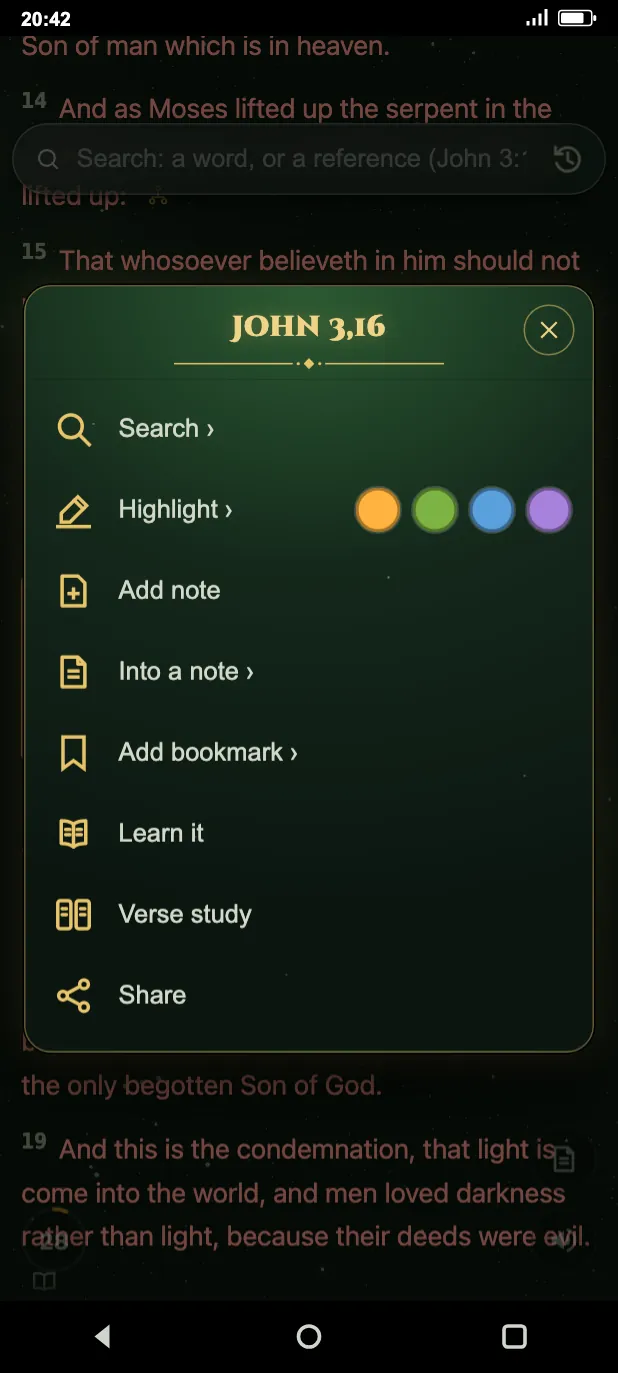
- Highlight: you pick a colour and the verse is coloured. The menu also holds the four colours you used last as quick buttons.
- You find your highlights, bookmarks and notes under the My notes tile, on separate tabs: Highlights, Bookmarks and Notes.
- Learn it: adds the verse to the verse memorizer. The verse memorizer is free.
- Verse study: you see two translations of the same chapter side by side. You also find it in the translation chooser as Compare two translations.
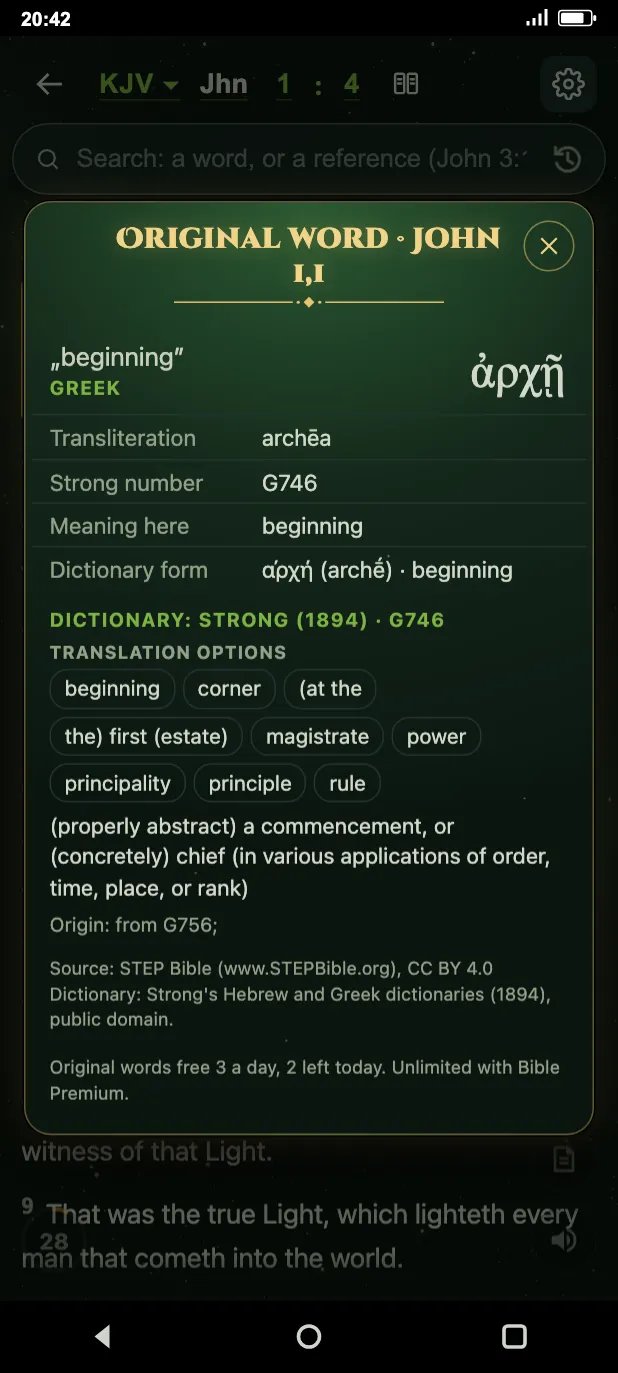
Tap a word and the Original word sheet opens: the Hebrew or Greek word, its transliteration and its Strong number. It works in the eight bundled Bibles, in all 66 books.
The Cross-references can be switched on in the Bible settings: verses that have related passages then get a marker showing how many there are, and you can jump to them. Source: OpenBible.info.
3. Search
The search field is on the book grid and at the top of the reader. You can type a word or a reference, for example: John 3:16.
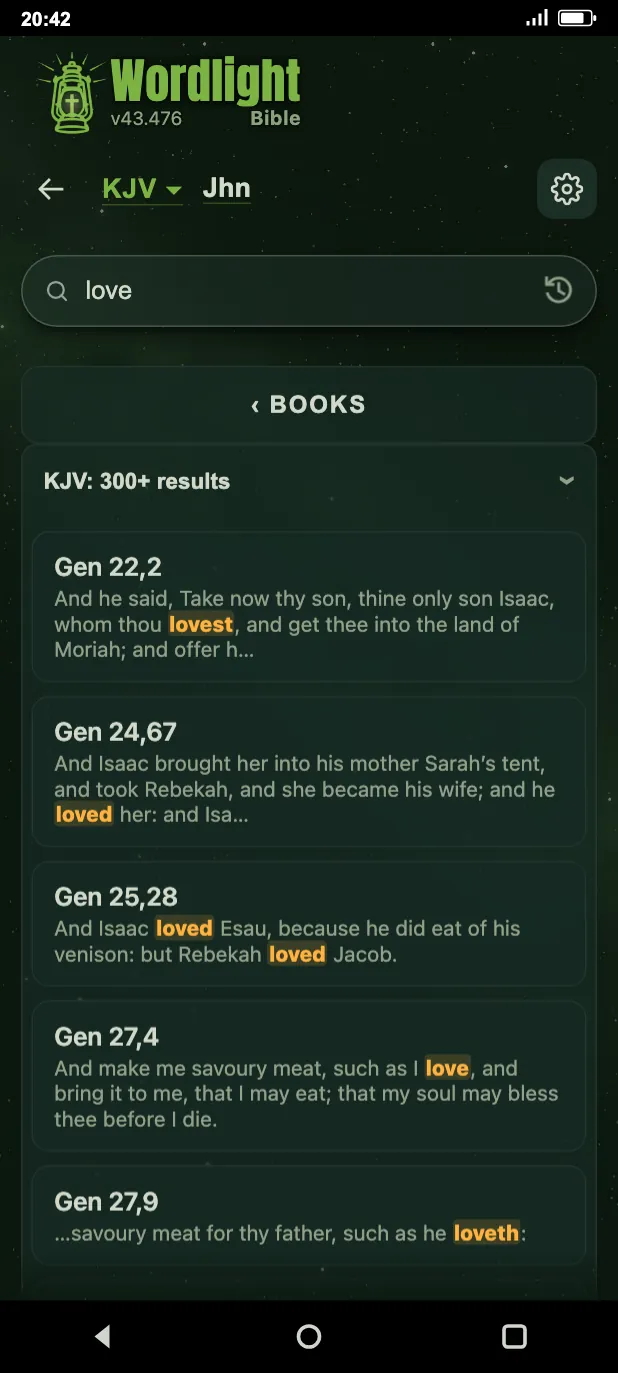
- Search ignores accents and upper or lower case. The words you type are matched at the start of words, and anything may follow them, so inflected forms are found too.
- With several words, every word must appear in the verse, anywhere and in any order. In the results the words you searched for are shown in bold.
- Tap into the field and your earlier searches drop down; tap the history icon at the end of the field and the verses you read last appear. The two are never shown at the same time.
- In the verse menu, Search asks which of the verse's words to search for.
4. Read-aloud and listening
While reading, the speaker button starts the Reading aloud and the same button stops it. The verse being read aloud is highlighted and the text follows the voice.
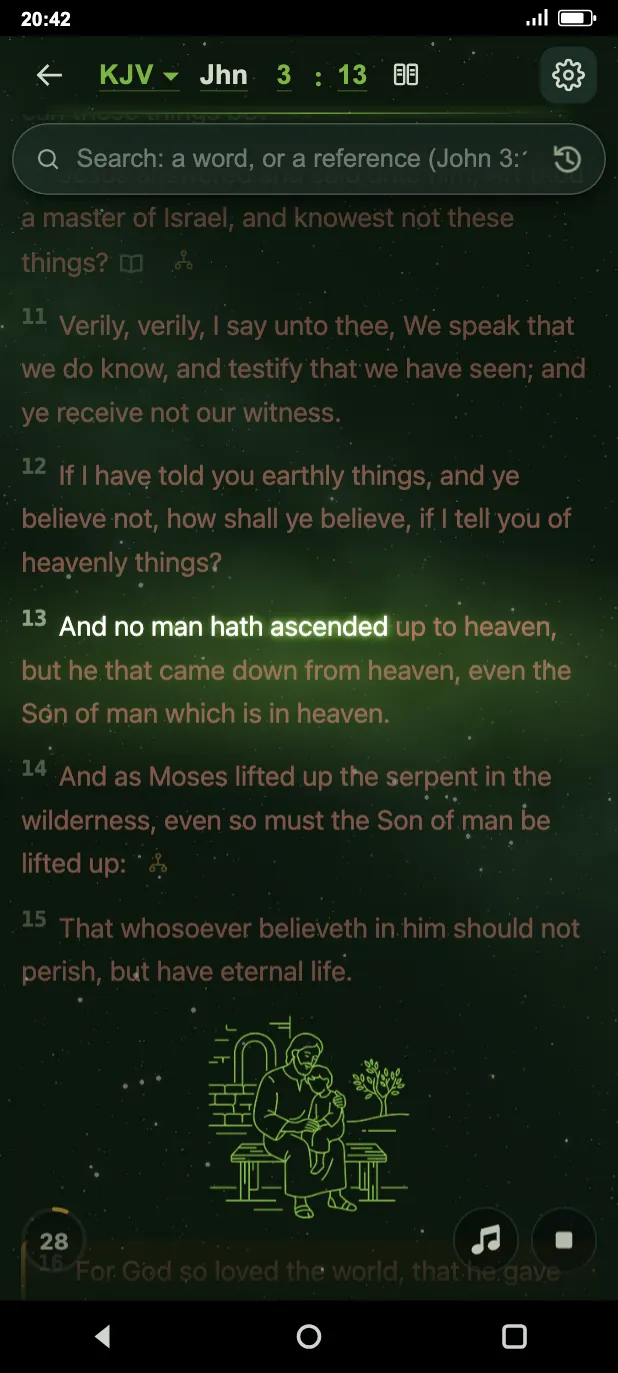
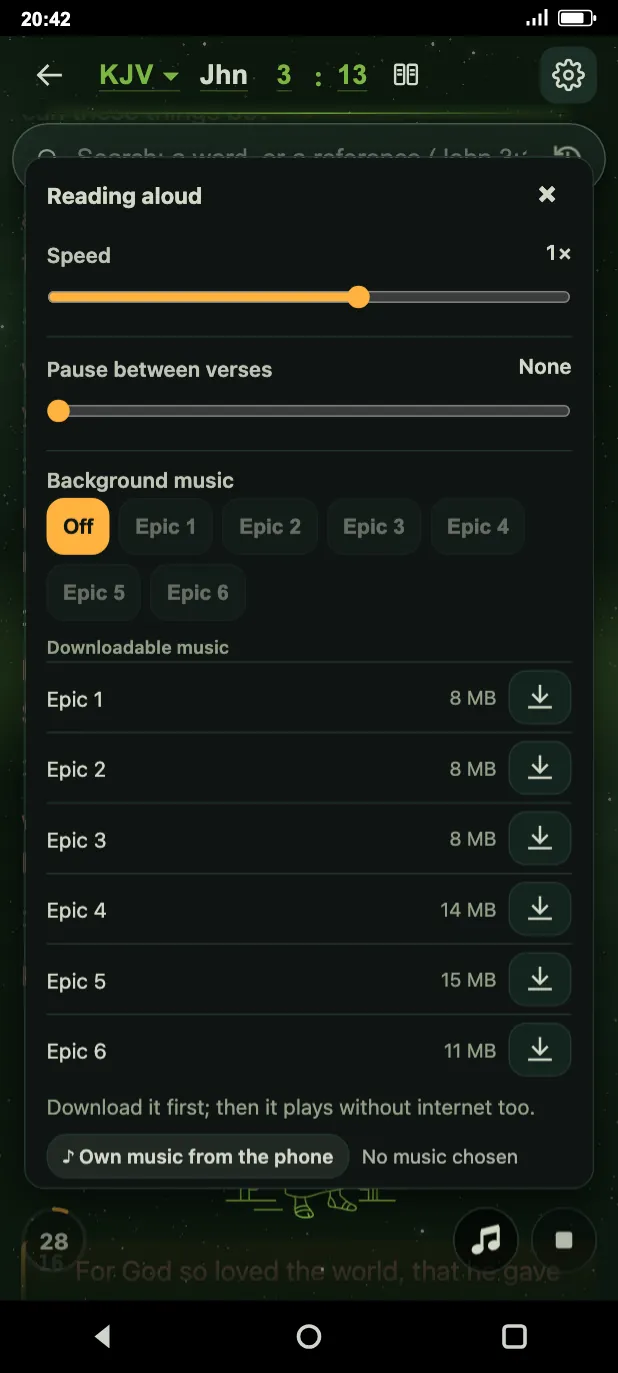
- While reading aloud a music-note button appears: it opens the Reading aloud panel. Here you choose the Reading voice, set the Speed (0.7 to 1.2 times with the phone voice), the length of the Pause between verses (none, or from half a second to 10 seconds), and switch on the Background music with its own volume (Music volume).
- There are two kinds of voice. The phone's voice is the phone's own machine voice and takes no space. The Studio voice is a ready-made recording; it can be downloaded book by book in the Bible settings (Download for offline use). The studio voice plays at its own pace, so its speed cannot be changed.
- In the Hungarian interface, under the studio voice you choose between Imre and Mihály (and Samuel, where available). Imre is a machine voice: the app labels it that way too (Gépi felvétel · magyar (Machine recording · Hungarian)). In other interface languages there is one studio voice next to the phone voice; it can be chosen once at least one book of it is ready on the server.
- 5 minutes of read-aloud a day are free, with either the phone voice or the studio voice. After that you need Biblia premium, or the 5 minutes come back the next day (by the device's local day). When only 1 minute is left, the app tells you. The alarm's read-aloud does not count.
5. Reading plans and alarms
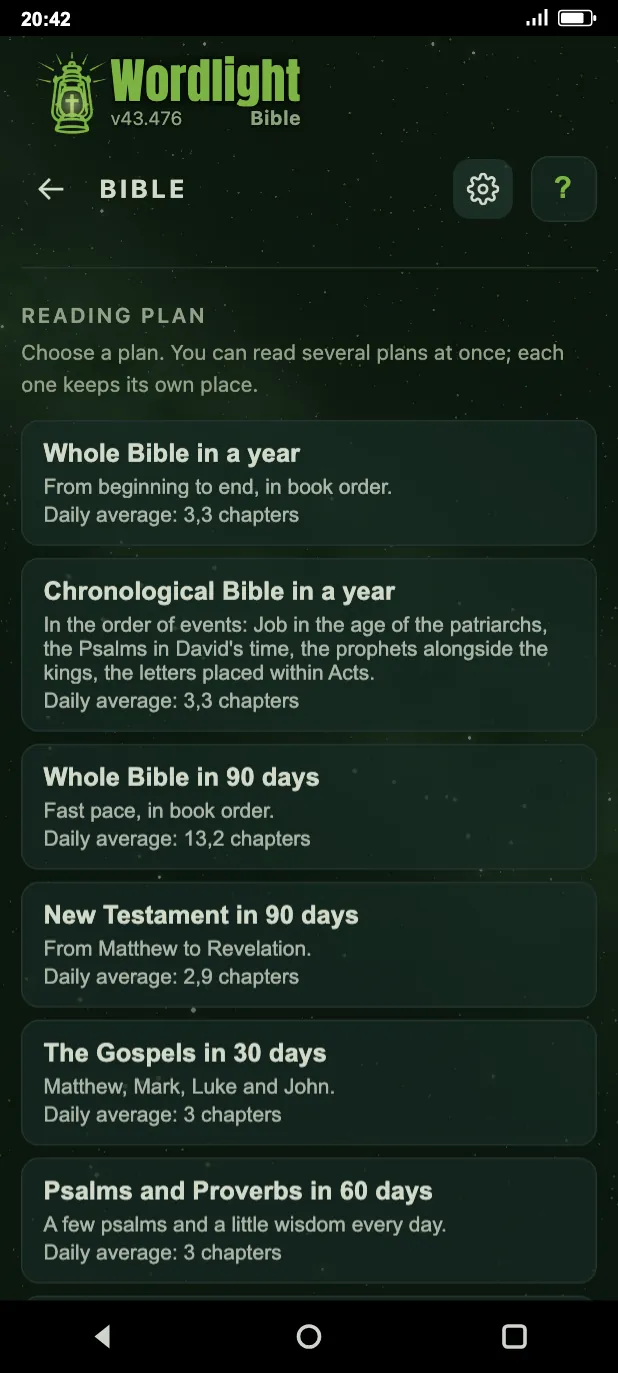
On the Reading plan tile you choose from several ready-made plans, for example: Whole Bible in a year, New Testament in 90 days, The Gospels in 30 days. The app asks for confirmation before starting a plan. You can read several plans at once, and each one remembers where you are.
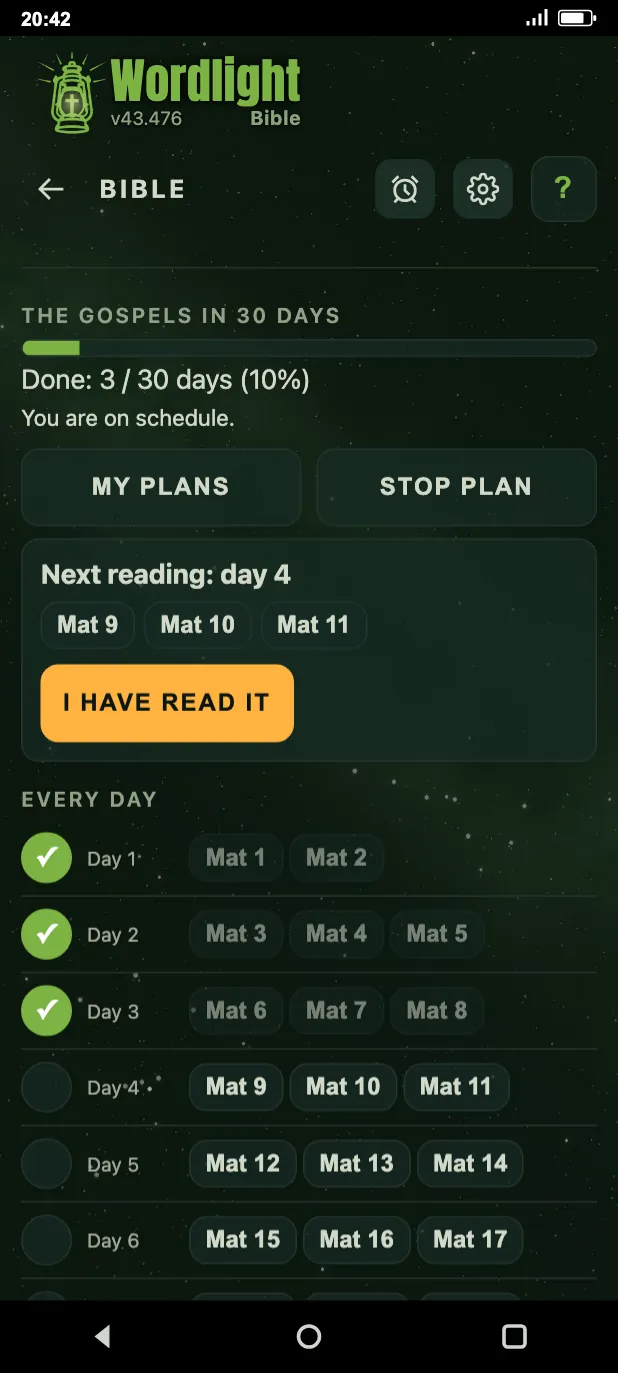
On a plan's page you see your progress (for example: 3 / 30 days done), whether you are keeping the pace, the chapters of the next reading and the I have read it button. Further down you can tick off what you have read, day by day. The My plans button takes you to the list of plans you have started, and Stop plan stops the plan; your progress is then deleted.
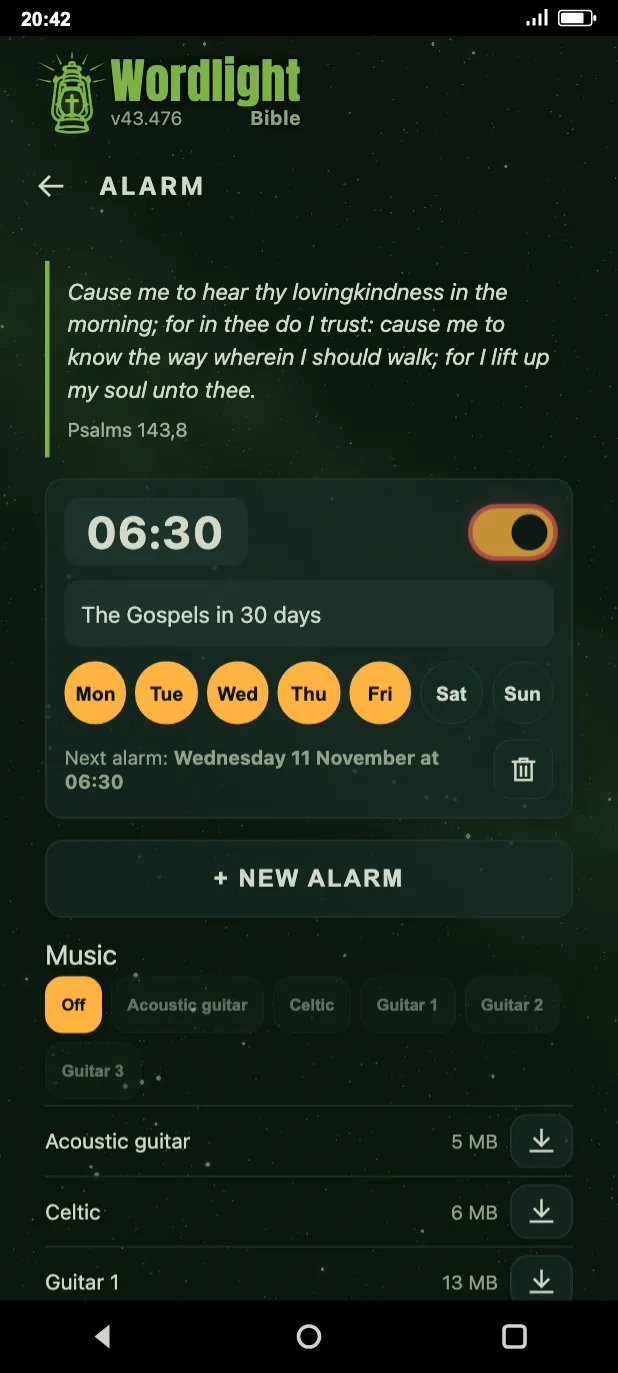
- The alarm reads aloud the daily reading of a reading plan, so you have to start a plan first. While a plan is running, an alarm icon appears in the reader header; it opens the Alarm page.
- For an alarm you set the time (you can step the digits with the buttons or by dragging), the plan, and the days of the week it rings on. A new alarm (New alarm) is created for 6:30 by default. You can switch each one on and off separately, or delete it.
- The alarm rings only in the Android app. It cannot ring in a browser or on an iPhone, but your setting is kept there as well.
The Daily time with the Word daily goal is set in the Bible settings: no goal, 5, 10, 15, 20, 30 or 60 minutes, 5 minutes by default. The daily goal works without Biblia premium too.
6. Prayers and prayer requests
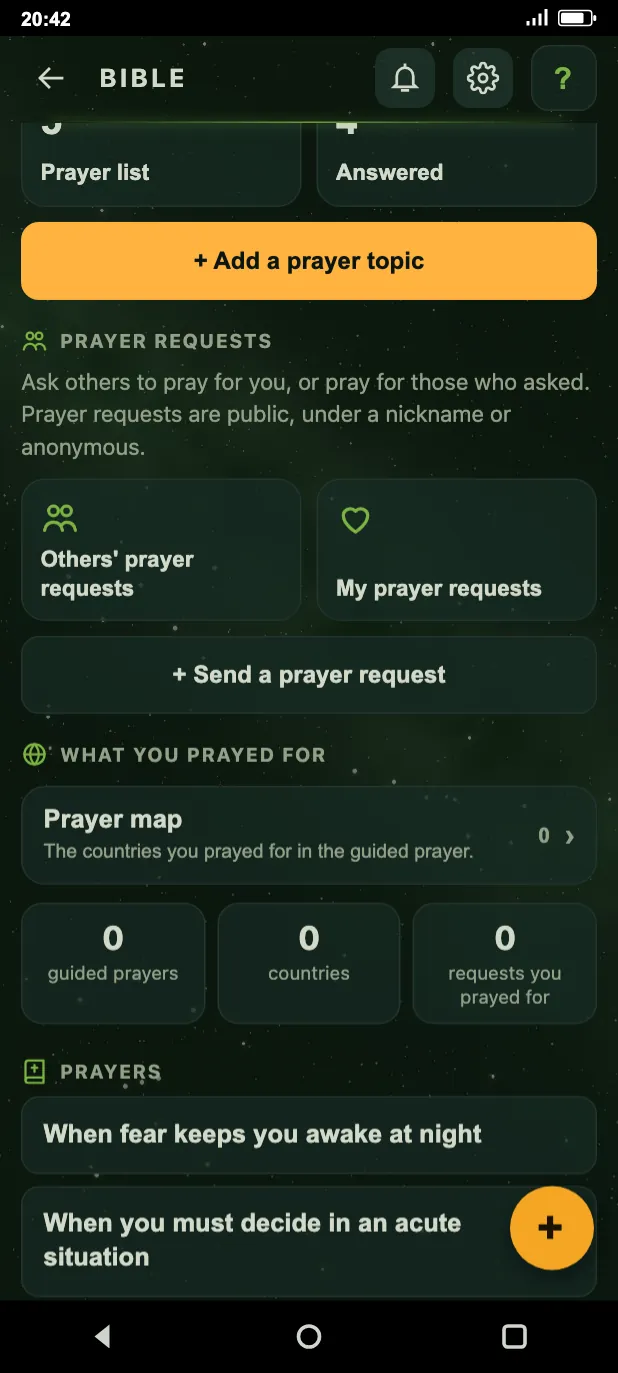
The Prayers tile is your place of prayer: the Today's guided prayer (and All guided prayers), the daily Pray every day reminder, your own prayer topics, prayer requests, the prayer map and the list of prayers.
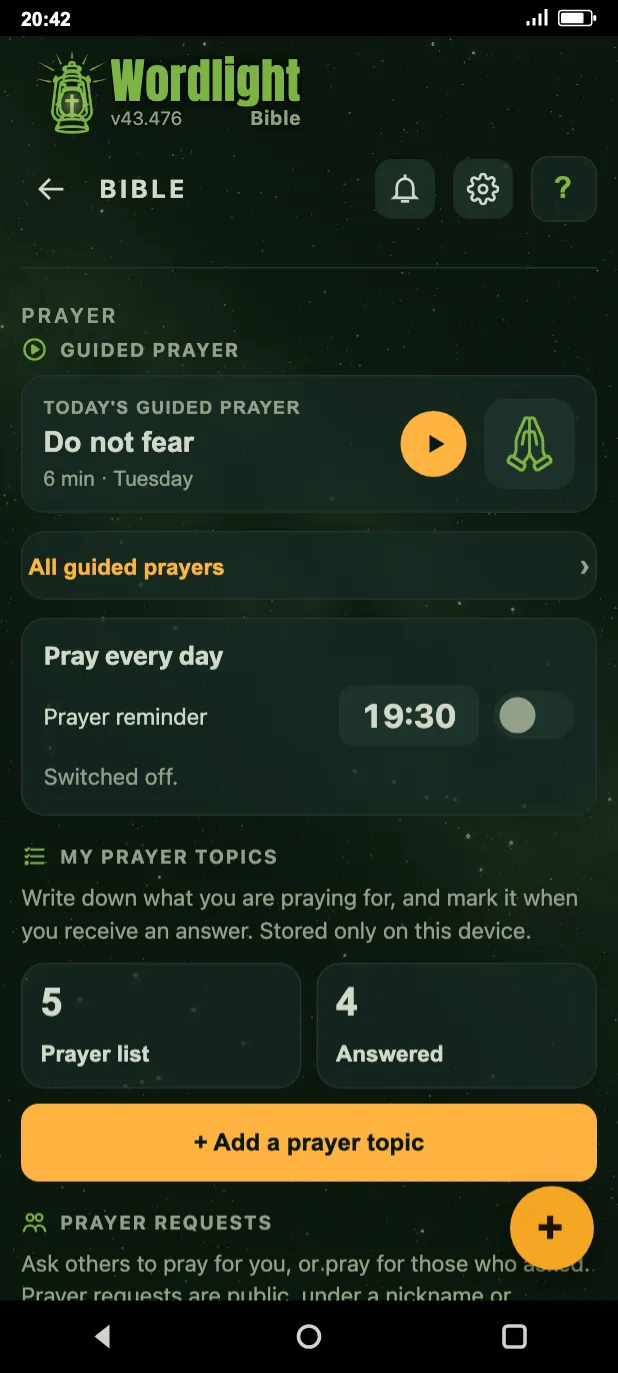
- You can write down your own prayer topic (Add a prayer topic) and mark it when you have received an answer (Answered). These are stored only on your device.
- On the Confessions tile you keep your own confessions; there is no shared list. Add a new one with the plus button at the bottom right.
- Under prayer requests, Others' prayer requests lets you pray for the requests of others, My prayer requests shows your own, and Send a prayer request sends in a new one. Prayer requests are public, with a nickname or without a name.
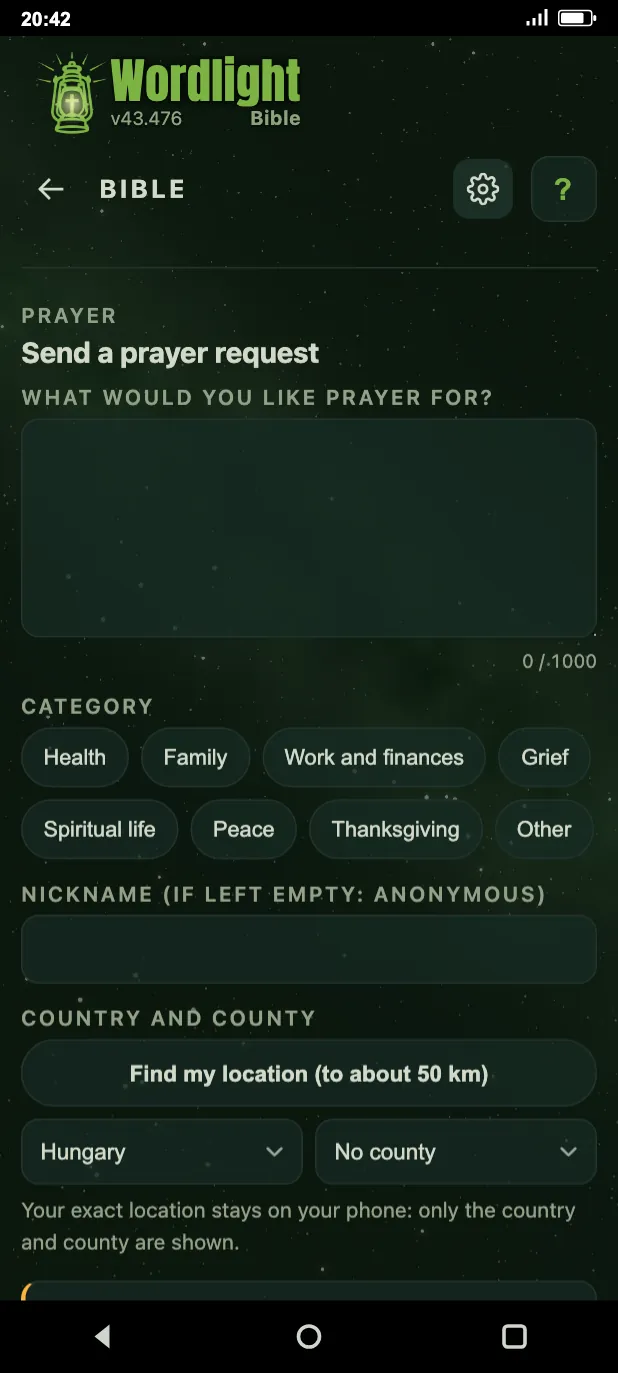
- When you send one, you write why you ask for prayer (at least 10 letters, at most 1000 characters), choose a category and a country (the county is optional), and you may give a nickname; if you leave it empty it will be Anonymous. Your exact location is not published, only the country and the county are shown.
- A request cannot contain a link or a run of more than three digits. You can send it only after ticking the consent box. For prayer requests you have to sign in once.
- Everyone who uses Wordlight or the PrepperPapa Bible can see the request, translated into their own language, and it also appears on the Prayer requests page of wordlight.bible. You can delete your own request at any time. If the automatic check finds something in a request (for example a phone number or a name), it waits for review before it appears.
7. Games
The Games tile holds Bible games for adults and children. At the top you switch between Adult and Child mode, and the app counts points and a streak.
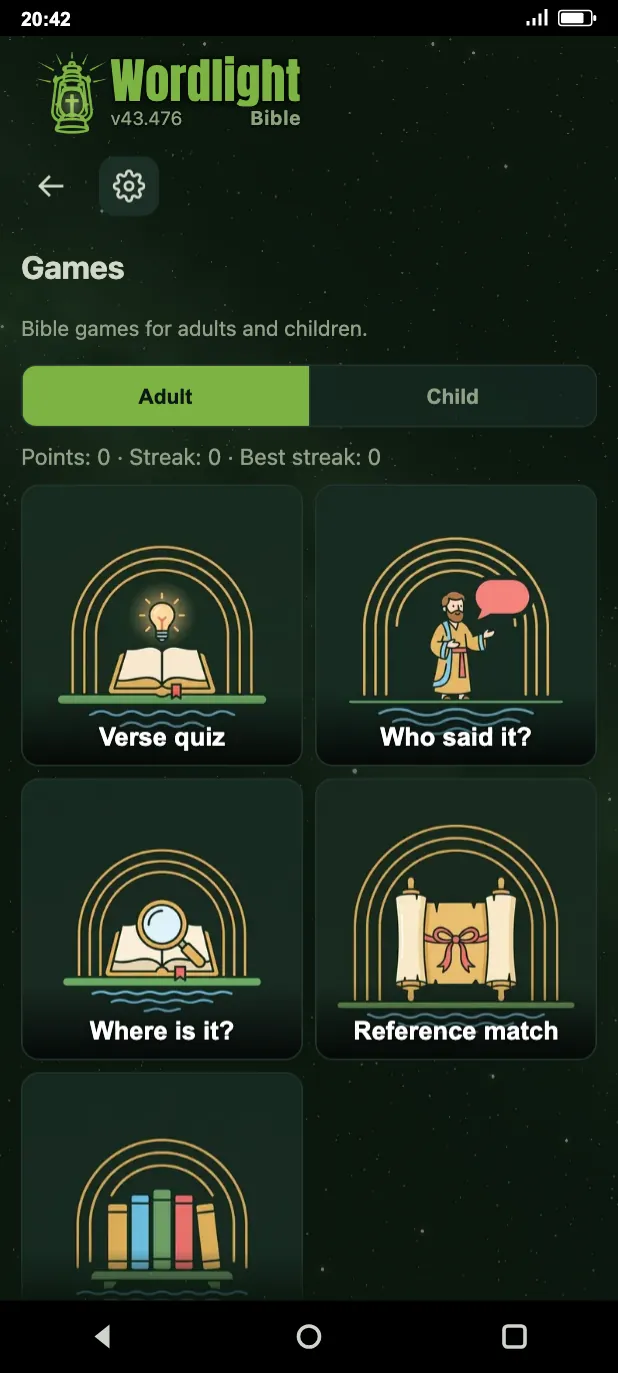
- Verse games: Verse quiz, Who said it?, Where is it?, Reference match and Book order. In children's mode the games For little ones appear as well: Memory game, Noah's ark, Who is who? and Puzzle.
- In adult mode the Verse quiz and the Verse matcher bring selected, significant verses (psalms, proverbs, the words of Jesus, prophecies), and the Verse quiz has three levels. In children's mode short, well-known verses come, at an easy level.
- The games can be played without Biblia premium.
8. Settings
In the reader header, the gear opens the Bible settings (Bible settings). The groups are all on this one page: Bible, General, Account and premium, Data and backup and Help and about.
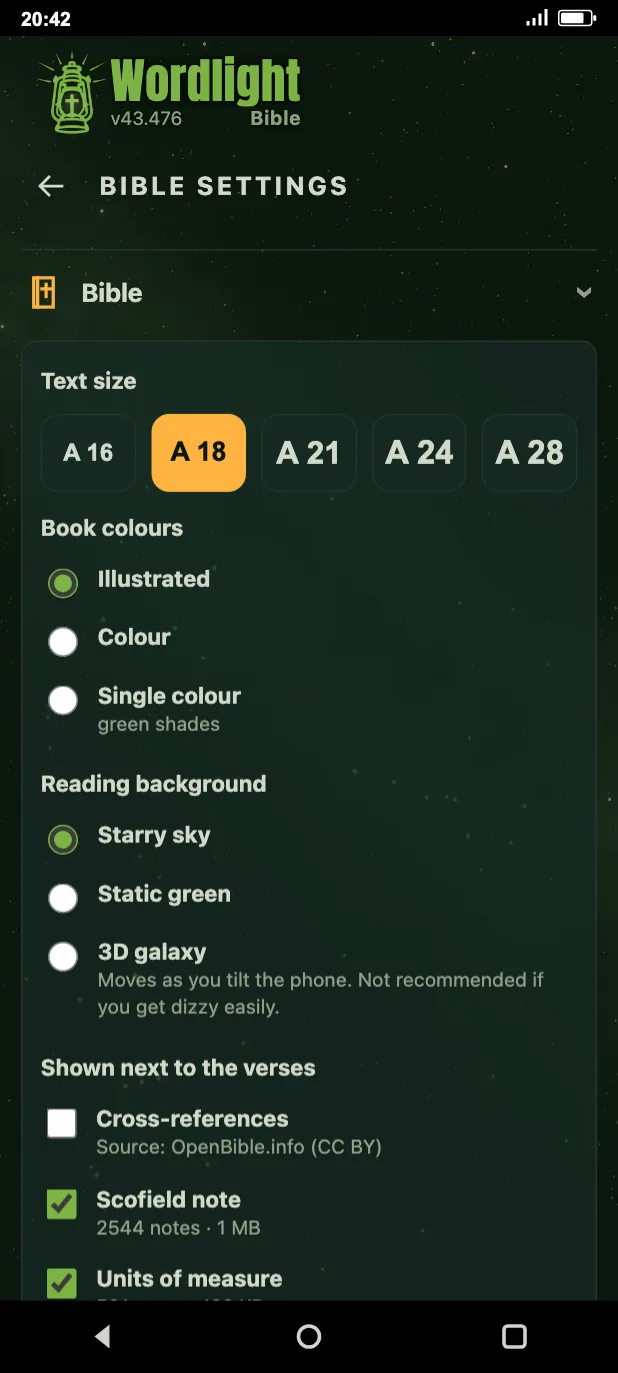
- Bible: Text size (A 16, A 18, A 21, A 24 or A 28), Book colours (Illustrated, Colour or Single colour), Reading background (Starry sky, Static green or 3D galaxy), the switches of Shown next to the verses, the Reading voice and the Daily time with the Word goal. The 3D galaxy moves with the tilt of the phone and is not recommended for people prone to dizziness.
- General: the language and vibration settings are here. The interface language can be chosen from eight languages: Hungarian, English, German, Spanish, Polish, Romanian, Russian and Ukrainian.
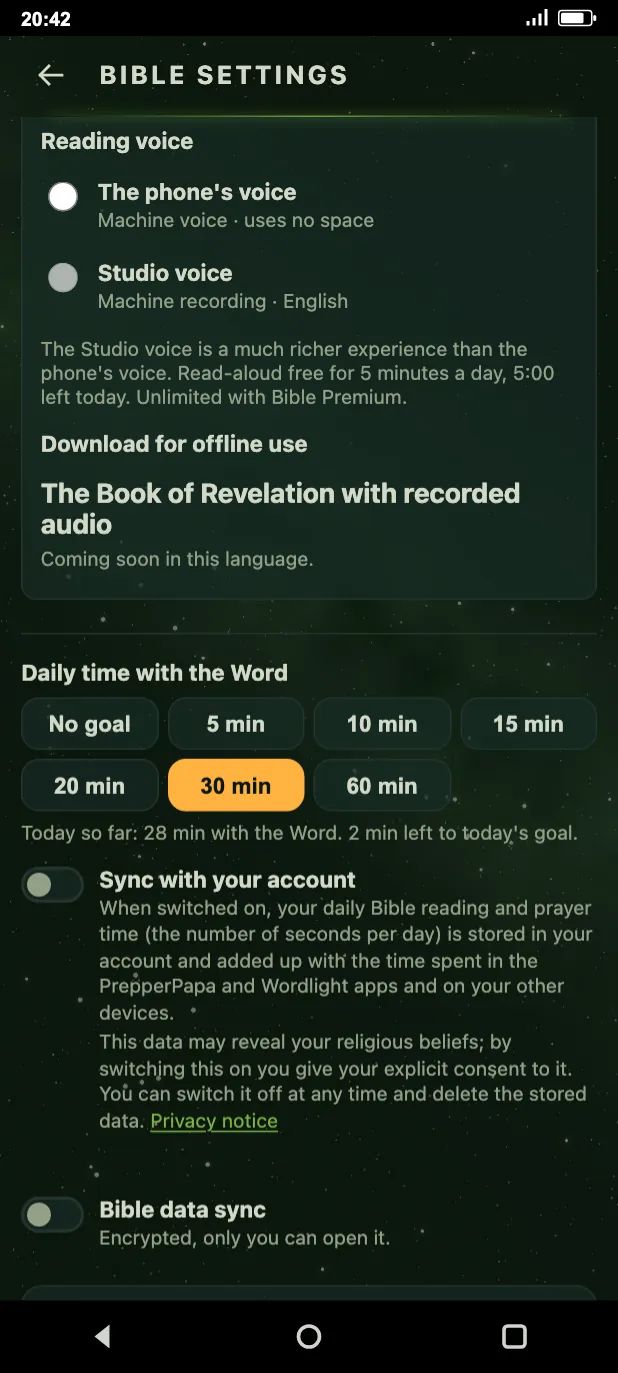
Under Reading voice you choose the voice, and in the Download for offline use section you can download voice recordings book by book.
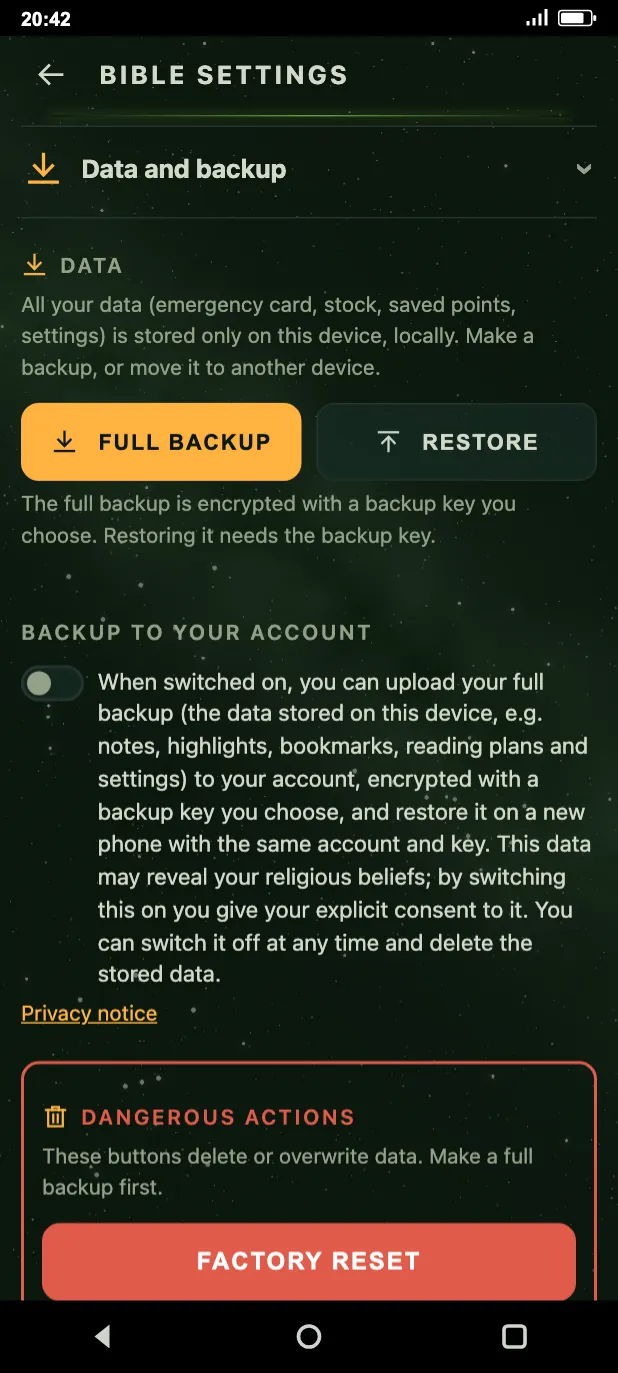
- Data and backup: the Full backup button saves your data encrypted with a backup key you choose, and the Restore button restores it. The backup key is needed when restoring.
- With the Backup to your account switch you can also upload your full backup to your account and restore it from there. This data may point to your religious beliefs, so you switch it on with explicit consent, and you can switch it off at any time.